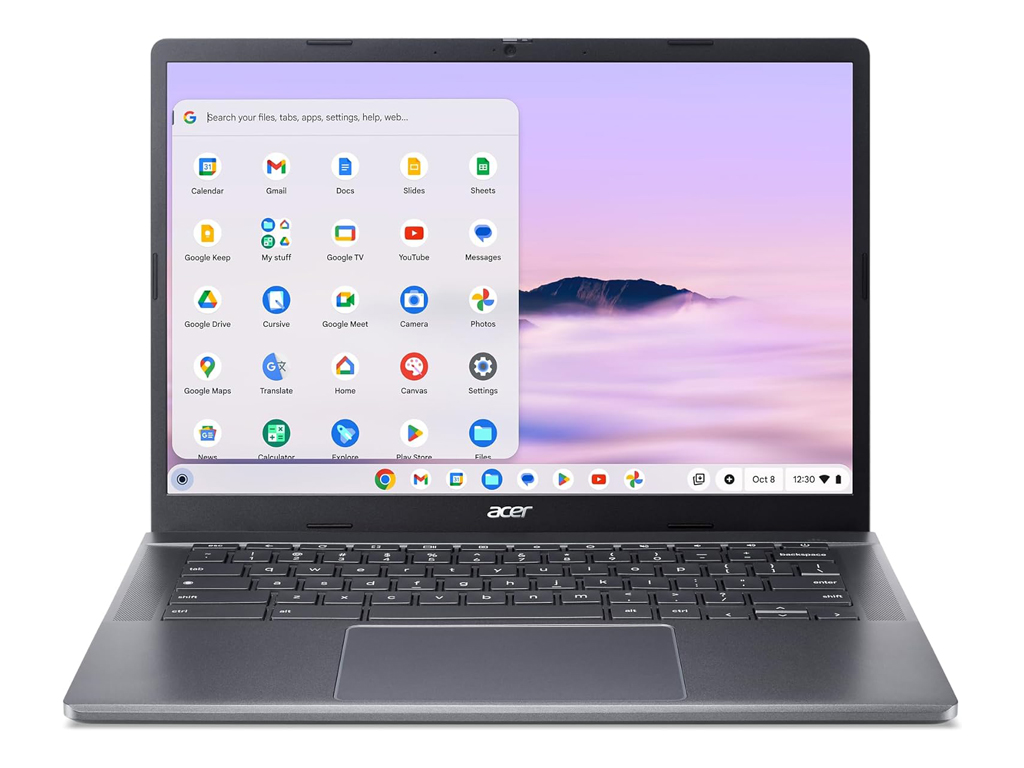
While you may be accustomed to the seamless screenshot process on your iPhone, navigating a Chromebook can be somewhat different but equally straightforward. Here’s a step-by-step guide on how to take screenshots on a Chromebook, ensuring you capture exactly what you need.
Capturing the Full Screen
To take a screenshot of your entire Chromebook screen, you need to use a simple keyboard shortcut. Press the Ctrl key and the Show Windows (or Switch Window) key simultaneously. This key is typically located above the number 5 or 6 key on your Chromebook keyboard. Once you press these keys together, a notification will pop up in the bottom right corner of your screen, indicating that the screenshot has been taken. The screenshot will be saved as a .png file in the Files app on your Chromebook, usually labeled with the time and date it was captured[1][3][5].
Capturing a Specific Part of the Screen
If you only need to capture a portion of your screen, you can do so by using a slightly different keyboard shortcut. Press the Ctrl, Shift, and Show Windows keys at the same time. This will change your cursor into a cross-hair style cursor, allowing you to select the area of the screen you want to capture. Click and drag the cursor to define the area, and then click inside the outlined section to capture it. The screenshot will be saved in the same manner as a full-screen screenshot, in the Files app[1][3][5].
Using the Screen Capture Button
For those who prefer not to use keyboard shortcuts, recent versions of Chrome OS offer a convenient alternative. You can access the screen capture tool through the Quick Settings menu. Click on the time in the bottom right corner of the screen to open the Quick Settings menu, and then select the Screen Capture button, which looks like a square with a small circle inside. This will give you options to capture the full screen, a single window, or a specific part of the screen. You can also use this tool to start a screen recording[1][4].
Taking Screenshots on Chromebook Tablets
If you are using a Chrome OS tablet, taking screenshots is a bit different due to the lack of a physical keyboard. To capture the entire screen, press the Power and Volume Down buttons simultaneously. For tablets that support stylus input, you can use the stylus to capture a specific region of the screen. Tap the Pen button on the Chromebook’s shelf, select Capture Region, and then use the stylus to define the area you want to capture[4].
Accessing Your Screenshots
Once you have taken a screenshot, you can find it in the Files app on your Chromebook. The screenshot will be saved in the Images folder. You can also access recent screenshots through the Clipboard by pressing Search + V, or by opening the Tote button on the shelf to view your recent captures[4].
Most Important Facts About Taking a Screenshot on a Chromebook
Full Screen Screenshot: Press Ctrl + Show Windows keys to capture the entire screen.
Partial Screen Screenshot: Press Ctrl + Shift + Show Windows keys to select a specific area of the screen.
Using Quick Settings: Click on the time in the bottom right, select Screen Capture from the Quick Settings menu to capture the screen.
Tablet Screenshot: Press Power + Volume Down buttons for full screen, or use the stylus for partial screen capture.
Screenshot Location: Screenshots are saved in the Files app, typically in the Images folder.
Alternative Methods: Use external keyboard shortcuts like Ctrl + F5 if there is no Show Windows key, or search for “screenshot” in the app launcher search bar.
Accessing Screenshots: Use Search + V for Clipboard, or the Tote button to view recent screenshots.